By default it is not possible to swap article title and intro image nor rearrange other article properties.
The solution for this problem is called a template override. The idea is to make copies of certain Joomla! core files, modify them (rearrange code blocks) and save them in specific places.


In this tutorial I will show how to place intro image before article title for featured articles (usually the front page). I will do this in Joomla! 3.2
Using FTP locate the file /components/com_content/views/featured/tmpl/default.php and copy it to your computer.
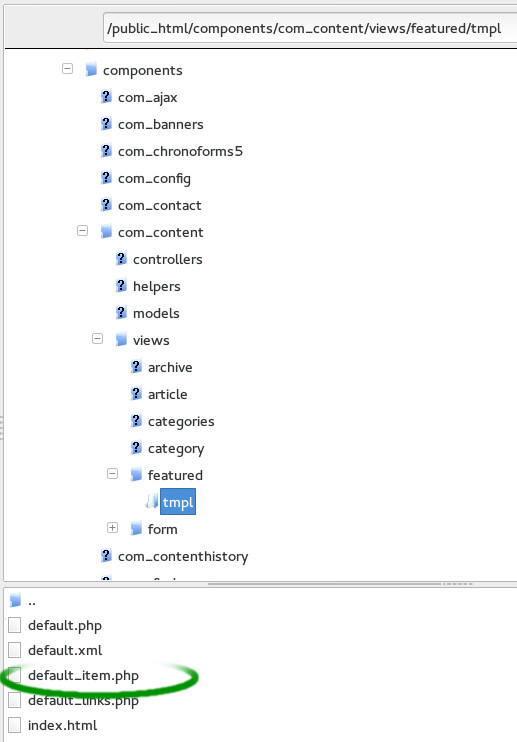
Open it with your favorite code editor and using Find look for the text “image_intro”. In my case it was around the line 139.
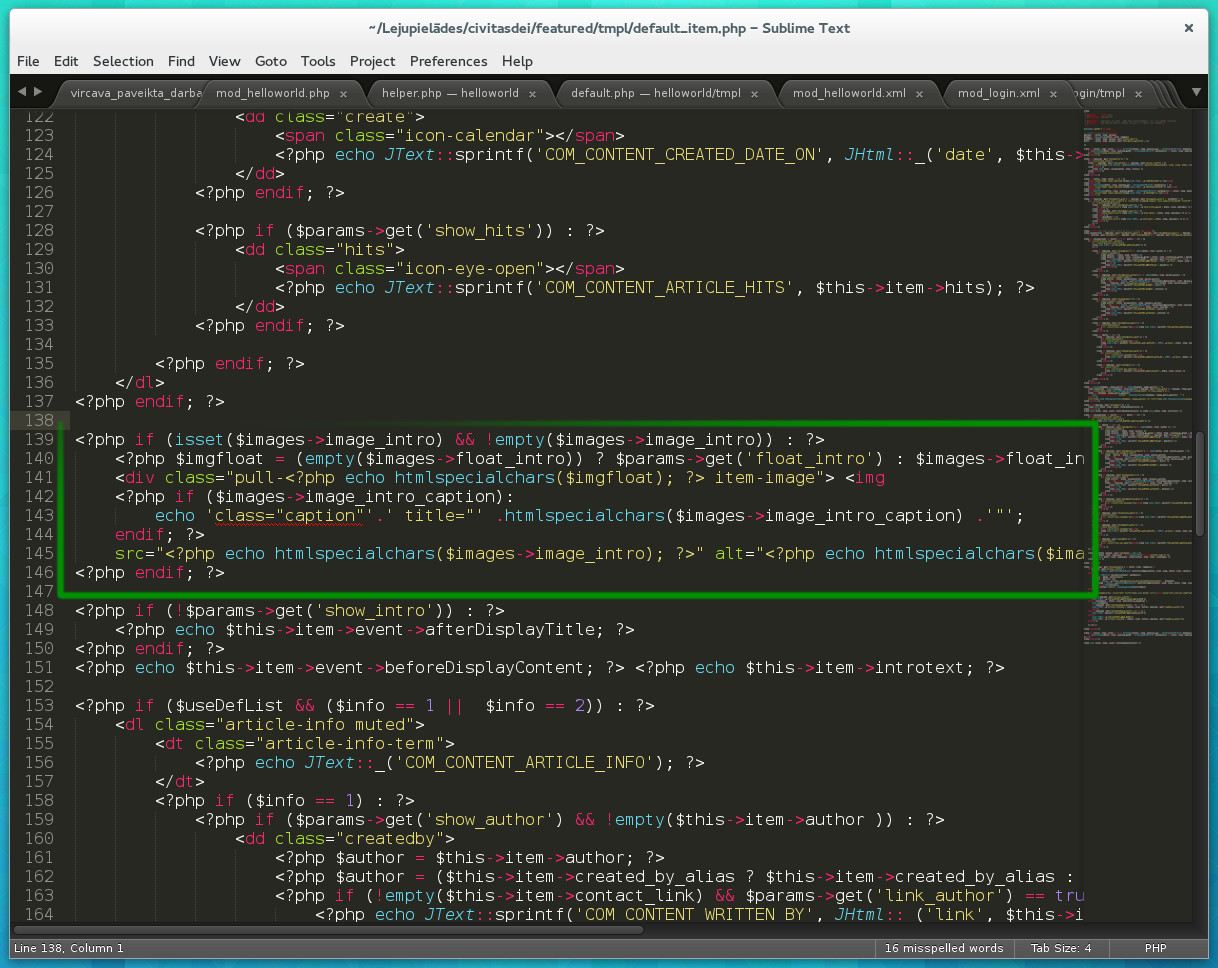
Select and Cut this code block and place it before the title. In my case I had to paste that block before line 25. See the image.

Applying the template override
Starting with Joomla! 3 there is no need to manually create specific folders and files. In Joomla! admin panel go to Extensions — Template Manager and switch from Styles to Templates (See the image)
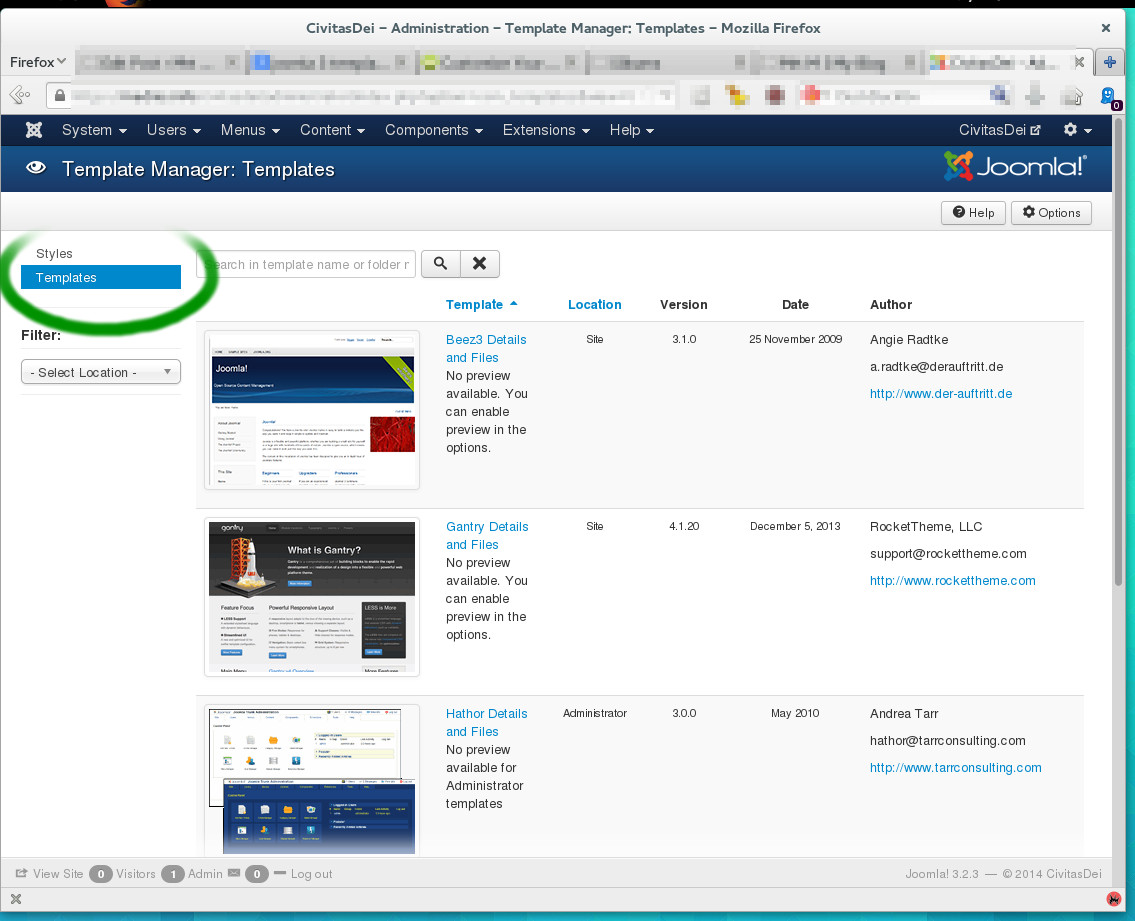
Find the template you are currently using in your site and click the link “Details and Files”. Then swicth to “Creare overrides” tab, locate Components/com_content and click on “featured” (see the image). After you click, a green message should appear stating that the override is successfully created.

At this point an empty override has been created. The next task is to replace that empty override with our code that we prepared minutes ago. Using Joomla! build-in code editor (see the image) locate the file “/html/com_content/featured/default_item.php”. This file should contain around 20 lines of code. Replace that code with the one you prepared with rearranged intro image.
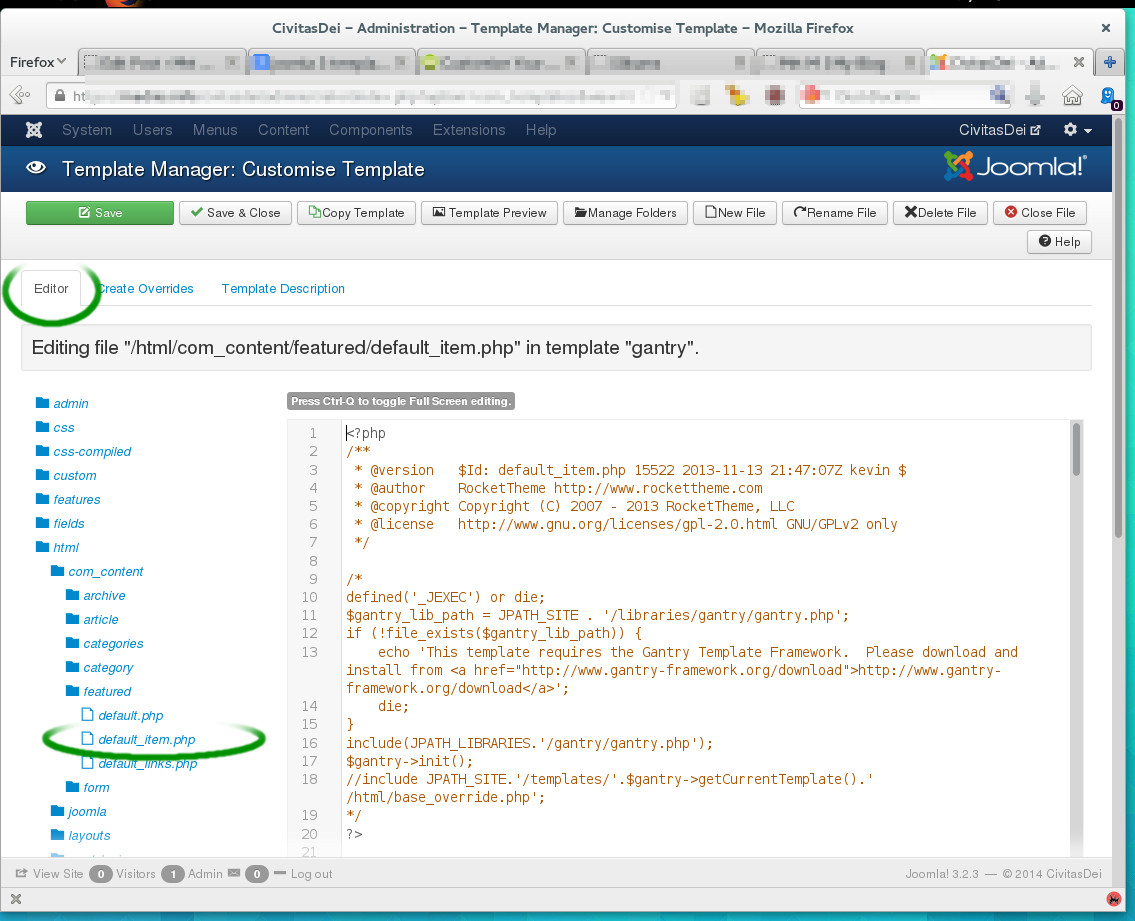
Once you save the file the template override should be already functioning. Similarly the output of components and modules can be overridden. The key phrase to search for is “template/module/component override”.