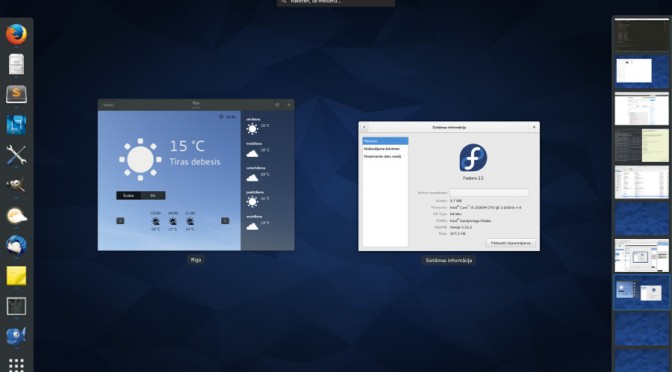
After fresh Fedora 22 install, first update the preinstalled software.
The prerequisite to all af the following commands is root access. su -
dnf update
Add Fusion repository (found this on fosspedro.wordpress.com) dnf install --nogpgcheck http://download1.rpmfusion.org/free/fedora/rpmfusion-free-release-22.noarch.rpm http://download1.rpmfusion.org/nonfree/fedora/rpmfusion-nonfree-release-22.noarch.rpm
Fedora 22 ships with SciPy version 0.14. To upgrade to 0.15.1 follow these instructions: How to upgrade SciPy on Fedora
To check SciPy version, in python console type: import scipy
scipy.__version__
Generate html file from asciidoc file asciidoc myfile.txt Use ‘-n’ to have numbered sections asciidoc -n myfile.txt
Generate PDF file
Although it is possible to directly create PDF files using a2x utility, I prefer to convert my file to docbook format and then to PDF. asciidoc -n --doctype=article --backend=docbook45 myfile.txt
or asciidoc --doctype=book --backend=docbook45 myfile.txt
Then dblatex gramata.xml
or dblatex --backend=xetex gramata.xml
Install some additional packages if needed yum install python-devel
yum install libxml2-devel
yum install swig
Compile and install libSBML
Go to the directory where you have exctracted libsbml source and run these 3 commands ./configure --with-python
make
make install
Make libsbml accessible to Python
In Fedora 18 you would export full path to libsbml: export PYTHONPATH=/usr/local/lib64/python2.7/site-packages/libsbmlIn Fedora 18 you would import _libsbml not just import libsbml.
In Fedora 19 you have to export path like this: export PYTHONPATH=/usr/local/lib64/python2.7/site-packages/
The export command expires when user leaves his/her session.
Add RPM fusion repository
Download RPM fusion package from http://rpmfusion.org/Configuration
Add it yum localinstall –nogpgcheck rpmfusion-free-release-19.noarch.rpm
yum localinstall –nogpgcheck rpmfusion-nonfree-release-19.noarch.rpm
Install Flash plugin for 64bit systems yum install http://linuxdownload.adobe.com/adobe-release/adobe-release-x86_64-1.0-1.noarch.rpm -y
Read more about playing flash here.
Install applications according to your needs yum install gnome-tweak-tool
yum install gimp
yum install inkscape
yum install thunderbird
Fix keyboard shortcuts for static workspaces yum install dconf-editor
In dconf-editor go to org → gnome → desktop → wm → keybindings
You have to disable dynamic workspaces prior to this.
Chromium web browser yum-config-manager --add-repo=http://repos.fedorapeople.org/repos/spot/chromium-stable/fedora-chromium-stable.repo
yum install chromium -y
Read more about Chromium web browser here.
With gnome-shell, you’ll need to create a .desktop file in ‘~/.local/share/applications/’ which will then allow you to add the application to the gnome-shell dash.
If you ever need to download an entire Web site, wget can do the job: wget \
--recursive \
--no-clobber \
--page-requisites \
--adjust-extension \
--convert-links \
--restrict-file-names=windows \
--domains example.com \
--no-parent http://example.com.lv/thefolder/
The options are: --recursivedownload the entire Web site.