How to upgrade SciPy on Fedora 23

As it was with Fedora 22, the Fedora 23 still ships with SciPy version 0.14.1. To upgrade SciPy please run the following commands as root:

dnf install python-pip
dnf install blas-devel
dnf install lapack-devel
dnf install gcc-c++
dnf groupinstall "Development Tools"

If you now try to upgrade scipy you will get the following error
g++: error: /usr/lib/rpm/redhat/redhat-hardened-cc1: No such file or directory

On Fedora 23 one has also to install rpm-build to avoid errors during compilation of scipy:
dnf search rpm-build

Finally uninstall scipy 0.14.1, download 0.16.0, compile it and install. All with the following command:
pip install --upgrade scipy

Configure LightTable editor so it behaves more like SublimeText

In LightTable press Ctrl-Space to open Commands pane. Type “settings” and choose “Settings: User keymap”.
It will open keymap configuration. The following configuration adds PageUP and PageDown keyboard shortcuts to switch between opened files and Ctrl-/ shortcut to comment/uncomment current line.

;; User keymap
;; -----------------------------
;; Keymaps are stored as a set of diffs that are merged together together
;; to create the final set of keys. You can modify these diffs to either add
;; or subtract bindings.
;;
;; Like behaviors, keys are bound by tag. When objects with those tags are active
;; the key bindings are live. Keys can be bound to any number of Light Table commands,
;; allowing you the flexibility to execute multiple operations together. To see a list
;; of all the commands you can execute, start typing a word related to the thing you
;; want to do in between the square brackets (e.g. type "editor").

{:+ {:app {}

     :editor {"alt-w" [:editor.watch.watch-selection]
              "alt-shift-w" [:editor.watch.unwatch]
              "pmeta-/" [:toggle-comment-selection]}
     :tabs {"pmeta-pageup" [:tabs.prev]
            "pmeta-pagedown" [:tabs.next]
            }
     }}

To add line numbers or change color theme, you need to configure “User behaviors”. Press Ctrl-Space to open Commands pane, type “settings” and choose “Settings: User behaviors”.
Here is my configuration:

;; User behaviors
;; -----------------------------
;; Behaviors are stored as a set of diffs that are merged together
;; to create the final set of functionality that makes up Light Table. You can
;; modify these diffs to either add or subtract functionality.
;;
;; Behaviors are added to tags, objects with those tags then automatically gain
;; whatever logic the behavior imparts. To see a list of user-level behaviors,
;; start typing a word related to the functionality you want in between the square
;; brackets (e.g. "theme").

{:+ {
     ;; The app tag is kind of like global scope. You assign behaviors that affect
     ;; all of Light Table here
     :app [(:lt.objs.style/set-skin "dark")]

     ;; The editor tag is applied to all editors
     :editor [:lt.objs.editor/wrap
              :lt.objs.editor/line-numbers
              (:lt.objs.style/font-settings "" "12" "1.2")
              (:lt.objs.style/set-theme "monokai")]

     ;; Here we can add behaviors to just clojure editors
     :editor.clojure [(:lt.objs.langs.clj/print-length 1000)]}

 ;; You can use the subtract key to remove behavior that may get added by
 ;; another diff
 :- {:app []}}

Joomla 3 pagination localisation

2014-06_20_joomla_lv_pager

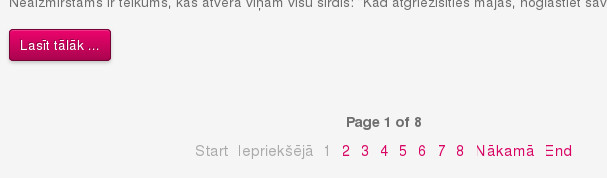
Joomla 3 LV language pack does not have full support for articles pagination.
The strings that are not translated are in en-GB.lib_joomla.ini file. However, there is nosuch file for Latvian. I had to create lv-LV.lib_joomla.ini, paste contents of appropriate EN file and translate corresponding lines, like:
JLIB_HTML_START="Start"
to
JLIB_HTML_START="Pirmā"

Place intro image before article title in Joomla! 3

By default it is not possible to swap article title and intro image nor rearrange other article properties.

The solution for this problem is called a template override. The idea is to make copies of certain Joomla! core files, modify them (rearrange code blocks) and save them in specific places.

Standard layout -- Article title, then intro image
Standard layout — Article title, then intro image
Layout with template override -- intro image, then article title
Layout with template override — intro image, then article title

Continue reading Place intro image before article title in Joomla! 3

Working with asciidoc on Fedora

Install Asciidoc and DocBook
yum install asciidoc
yum install docbook-dtds
yum install publican
yum install dblatex
yum install libxml2-devel
yum install libxslt docbook5-style-xsl docbook-utils

To generate PDF files LaTeX is required. See here how to install LaTeX and XeLaTeX on Fedora.

Generate html file from asciidoc file
asciidoc myfile.txt
Use ‘-n’ to have numbered sections
asciidoc -n myfile.txt

Generate PDF file
Although it is possible to directly create PDF files using a2x utility, I prefer to convert my file to docbook format and then to PDF.
asciidoc -n --doctype=article --backend=docbook45 myfile.txt
or
asciidoc --doctype=book --backend=docbook45 myfile.txt
Then
dblatex gramata.xml
or
dblatex --backend=xetex gramata.xml

libSBML 5.8.0 in Fedora 19 with Python bindings

How to install libSBML 5.8.0 in Fedora 19 with Python bindings

Install compiler
yum install gcc-c++
yum groupinstall "Development Tools"

Install some additional packages if needed
yum install python-devel
yum install libxml2-devel
yum install swig

Compile and install libSBML
Go to the directory where you have exctracted libsbml source and run these 3 commands
./configure --with-python
make
make install

Make libsbml accessible to Python
In Fedora 18 you would export full path to libsbml:
export PYTHONPATH=/usr/local/lib64/python2.7/site-packages/libsbmlIn Fedora 18 you would import _libsbml not just import libsbml.

In Fedora 19 you have to export path like this:
export PYTHONPATH=/usr/local/lib64/python2.7/site-packages/

The export command expires when user leaves his/her session.

Use the libSBML in your code
import libsbml